vendure-data-hub-plugin
Import and Export Wizards
The dashboard wizards create Data Hub pipeline definitions for common import and export workflows. They do not execute data movement while you move through the steps.
A completed wizard creates a disabled pipeline and opens its detail page. Review the generated graph and configuration, enable it when ready, and then run it manually or let its configured trigger start it.
Access and permissions
Open Data Hub > Pipelines, then choose the import or export wizard. The administrator needs the Data Hub pipeline create permission. Viewing adapters, connections, secrets, or existing pipelines also requires the corresponding Data Hub permissions.
The dashboard obtains entities, fields, adapters, strategies, destinations, and trigger schemas from the running server. The choices can therefore differ between installations as plugins and code-first configuration change.
Import wizard
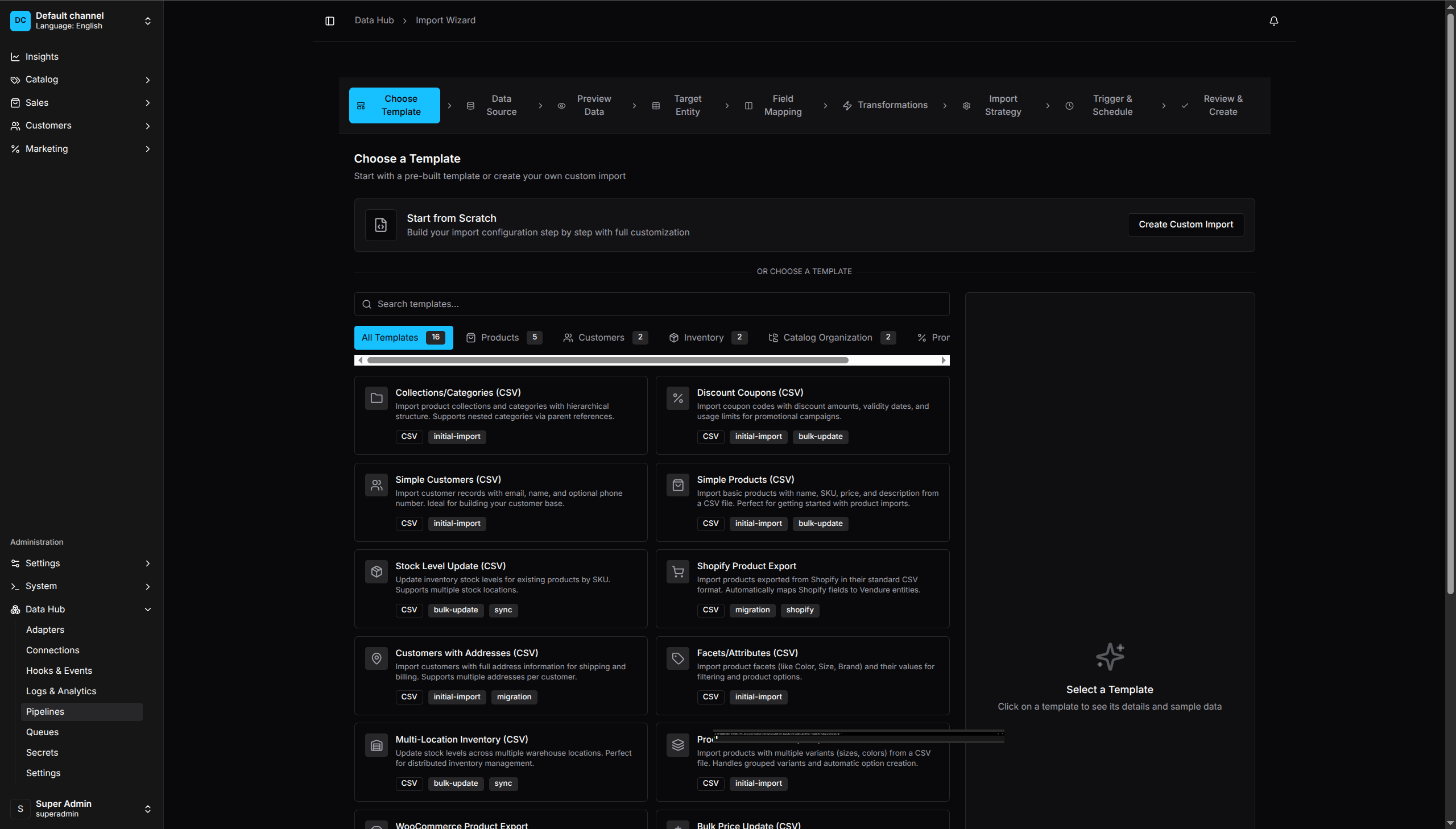
The import wizard contains nine steps. Choosing a template or starting from scratch removes the initial template step, leaving the eight configuration steps.
1. Choose a template
Use a server-provided import template or start from scratch. A template can preselect its source, target entity, lookup behavior, and field mappings. Every value remains editable before the pipeline is created.
2. Select a data source
The dashboard has dedicated controls for:
- File Upload: CSV, JSON, XML, and spreadsheet formats exposed by the server. File parsing and the preview happen in the browser.
- REST API: URL, method, headers, authentication, response data path, and pagination controls.
- Registered extractors: schema-driven forms for database, object storage, transfer, messaging, or custom adapters registered by the server.
Use secret references or saved connections where the selected adapter supports them. Do not paste production credentials into pipeline fields.
3. Preview data
For an uploaded file, the browser parses a bounded sample and displays its columns and rows. Changing the selected format or parsing options reparses the file.
This is a source-data preview, not a dry run against Vendure. It does not create, update, or validate entities in the database.
4. Select the target entity
Choose an entity supported by a registered loader. Entity availability and field schemas are supplied by the Admin API, with the dashboard’s static schema used only while dynamic metadata is unavailable.
5. Map fields
Map source columns to target fields. Required target fields are identified from the resolved entity schema. The editor prevents two mappings from owning the same target field; moving or swapping a mapping is applied atomically.
Check generated mappings carefully when source and target names are similar. Automatic matching is a convenience and cannot infer business meaning.
6. Configure transformations
Add the transformations needed before loading. The wizard converts these entries into transform steps in the generated pipeline. Keep transformations small and inspect the resulting pipeline when the workflow needs ordering, branching, or custom operator behavior.
7. Choose the import strategy
Configure:
- fields used to find existing records;
- behavior for existing and new records;
- cleanup policy where supported;
- publish behavior;
- batch size and parallel batch count;
- error threshold and continue-on-error behavior;
- duplicate handling for create-only imports where supported by the selected loader.
Strategy choices are supplied by the server. Their labels are not a substitute for checking the selected loader’s contract, especially for delete or cleanup operations.
8. Configure the trigger
Choose a trigger exposed for imports. Trigger-specific fields are rendered from the server schema. Manual, schedule, webhook, message, event, and file-based options appear only when supported by the running installation.
9. Review and create
Give the pipeline a name and inspect the source, target, mapping, transformation, strategy, and trigger summary. Create Import stores a disabled pipeline and opens the pipeline editor. It does not start the import.
Before enabling the pipeline:
- Inspect every generated adapter code and step edge.
- Confirm lookup fields and destructive strategies.
- Verify connection and secret references.
- Run with representative non-production data.
- Review the resulting run and logs.
Export wizard
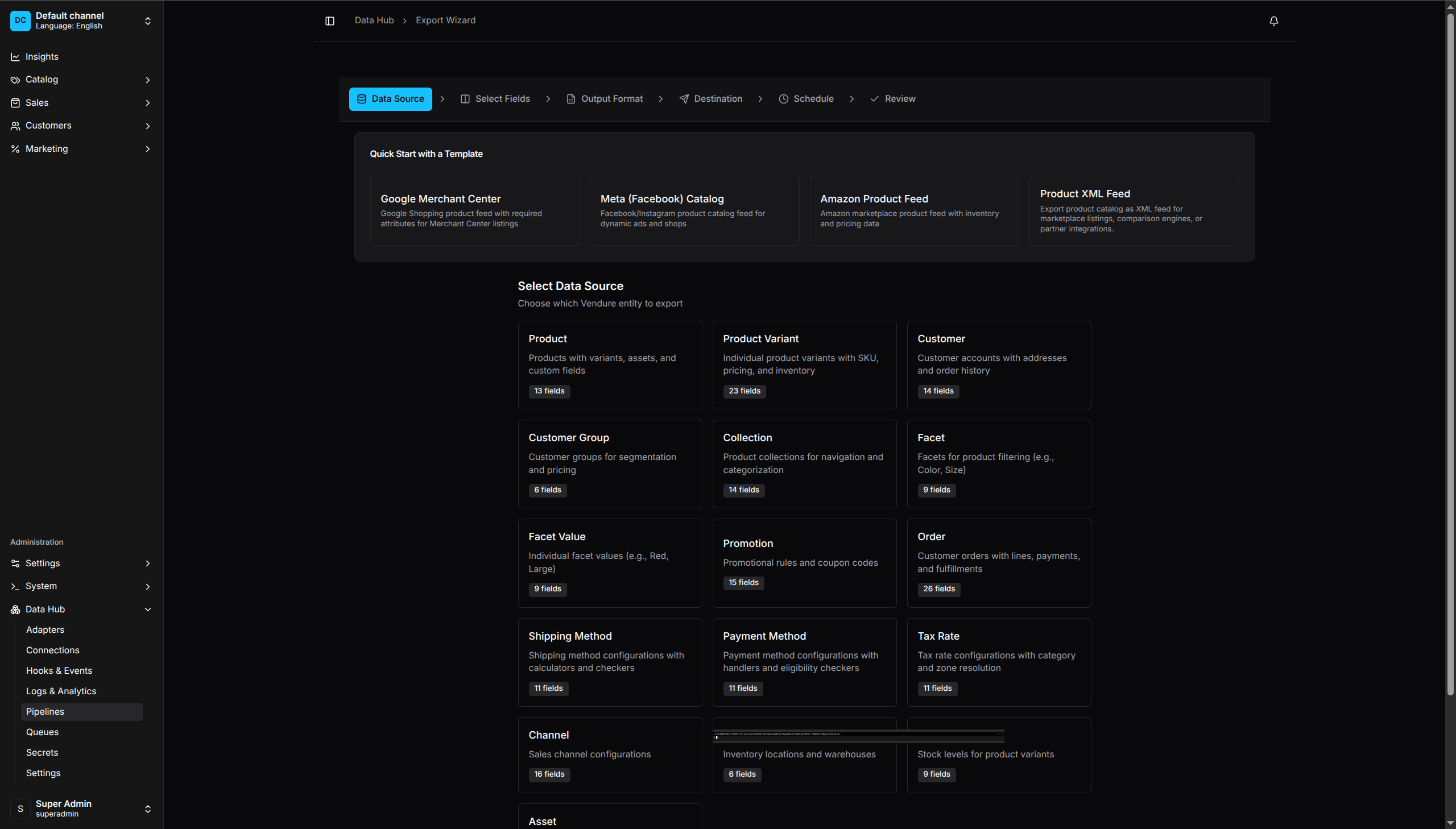
The export wizard contains six steps. Templates can prefill fields and format settings, but the same validation applies before creation.
1. Select the source
Choose a server-provided Vendure entity. Configure whether to export all records or a filtered query, plus ordering and filter conditions. Available fields come from the Admin API.
2. Select fields
Choose output fields, rename output columns, and order the selection. Related data must be explicitly supported by the entity extractor or added later in the generated pipeline.
3. Select the format
Choose a registered exporter format and configure its schema-driven options.
Feed adapters are configured as FEED steps rather than through this export
wizard because they have separate required catalog fields.
4. Select the destination
Choose one of the executable destinations returned by the server: local directory, HTTP, S3, SFTP, FTP/FTPS, or email. The form is generated from the same destination schema consumed by runtime validation.
Remote credentials are Secret Code references. HTTP uses url; static
headers are limited to non-sensitive values, while authentication and other
sensitive headers use auth or headerSecretCodes. Unsupported destination
values are rejected when the wizard converts the configuration and again when
the server validates the pipeline.
5. Configure schedule and options
Select a supported trigger, then configure batch size, compression, retry behavior, completion notification, metadata, and caching fields shown by the dashboard. Review the generated pipeline to confirm that the selected runtime adapter consumes each option.
6. Review and create
Give the export a name and inspect the complete summary. Create Export stores a disabled pipeline and opens its detail page. Enable or run it only after validating the generated source query, format, destination, and trigger.
Templates
Templates are configuration starters, not immutable recipes. Import templates can define source, target, strategy, lookup fields, and mappings. Export templates can define source entity, fields, format, and format options.
Templates registered by connectors are available only when the connector is included in the plugin configuration and its template registration succeeds.
Safety and troubleshooting
The next button is disabled
The current step has missing or invalid required fields. Check the validation summary at the top of the step. For schema-driven sources, wait until adapter metadata has loaded.
A file has no preview
Confirm that its extension matches the selected format and that the file contains records in the expected top-level shape. Large files are sampled; the wizard does not render the complete file.
An entity or adapter is missing
Confirm that the adapter is registered on the server and that the current role can query the relevant Data Hub metadata. Reload after changing server configuration.
Creation succeeds but nothing runs
This is expected: wizard-created pipelines are disabled. Open the generated pipeline, inspect it, enable it, and use Run for a manual trigger or wait for the configured trigger.
A generated pipeline fails
Open its latest run and logs, then verify the adapter code, connection, secret references, mapping paths, and loader strategy. Return to the pipeline editor for advanced changes; the wizard is not an execution debugger.