vendure-data-hub-plugin
Monitoring and Logs
Inspect pipeline runs, persisted logs, queue state, message consumers, and quarantined records from the Data Hub Dashboard.
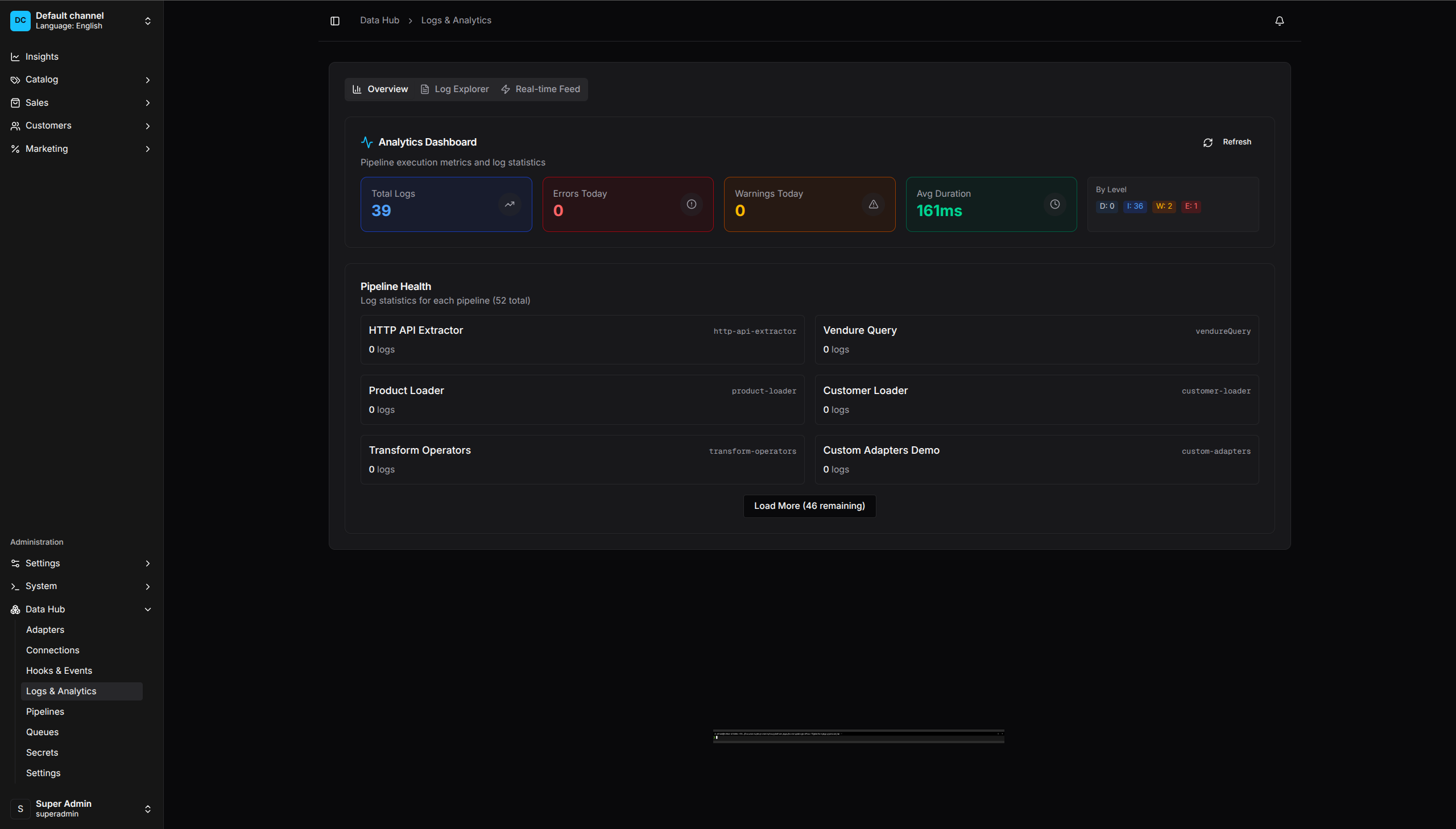
Logs & Analytics overview and pipeline log statistics
Implemented Monitoring Surfaces
| Dashboard location | What it shows |
|---|---|
| Pipelines > pipeline detail > Runs | Paginated run history for that pipeline, status filtering, timing, metrics, errors, logs, cancel, rerun, and gate actions |
| Queues > Queue Overview | Pending, running, failed, and completed-today counts; active counts by pipeline; recent failed runs |
| Queues > Dead Letters | Quarantined record errors with retry and unmark actions, subject to permission |
| Queues > Consumers | Message-consumer state, processed/failed counts, last message time, and start/stop actions |
| Logs & Analytics > Overview | Total persisted logs, today’s errors and warnings, average logged duration, counts by level, and per-pipeline log statistics |
| Logs & Analytics > Log Explorer | Persisted log search, filters, detail drawer, pagination, and current-page JSON export |
| Logs & Analytics > Real-time Feed | Latest persisted logs across pipelines, polled every three seconds |
| Settings | Run/error/log retention fields and persisted log level |
There is no separate Runs, Errors, Analytics, or Alerts route. Run history and record errors are scoped to a pipeline/run; queue and log information use the routes listed above.
Run History
Open Data Hub > Pipelines, select a pipeline, and use its Runs block. The table supports status filtering, pagination, start/finish sorting, manual refresh, and a run-detail drawer.
Run details include:
- current status and start/finish timestamps;
- processed, succeeded, and failed counters;
- step counters and the persisted step summary;
- raw run metrics and the terminal error, when present;
- a link to Log Explorer pre-filtered by run ID;
- record errors captured for the run;
- cancel for active runs, rerun for a finished run, and approve/reject for a paused gate when the operator has permission.
Run Statuses
| Status | Meaning |
|---|---|
PENDING |
Run record exists and is waiting for a worker |
RUNNING |
A worker is executing the pipeline |
PAUSED |
Execution is waiting at a gate |
CANCEL_REQUESTED |
Cancellation was requested and the runner has not completed cancellation yet |
COMPLETED |
Execution finished without a terminal run failure |
FAILED |
Execution ended with a terminal error |
TIMEOUT |
Retention cleanup marked a stale running execution as timed out |
CANCELLED |
Execution acknowledged cancellation |
There is no PARTIAL run status. Per-record failures are represented in run
metrics and record-error rows while the terminal run status follows the runner’s
result.
Persisted Logs
Log Explorer
Use Data Hub > Logs & Analytics > Log Explorer. Filters are available for:
- run ID;
- pipeline;
- log level;
- message text;
- start and end date.
Selecting a row opens its details. Export downloads only the rows on the currently loaded page as JSON; it is not an asynchronous full-history export.
The levels shown by the current runtime are DEBUG, INFO, WARN, and
ERROR. Which messages are persisted depends on Settings > Log Persistence
Level:
ERROR_ONLY: errors;PIPELINE: pipeline lifecycle messages and errors (default);STEP: pipeline and step lifecycle messages;DEBUG: all supported persisted messages.
Real-time Feed
The Real-time Feed is polling, not a WebSocket or GraphQL subscription. It requests the latest 50 persisted log entries every three seconds while the tab is active. It therefore has the same process/database visibility and persistence-level limits as the log queries.
Retention
The retention job applies retentionDaysRuns to finished runs and delivered
or permanently failed EVENT outbox rows, retentionDaysErrors to record errors, and
retentionDaysLogs to persisted pipeline logs. Each setting is an age in days;
a positive value deletes rows older than that cutoff, while null or 0
disables deletion for that data type.
Queue and Error Operations
Queue Overview is an aggregate view, not a complete listing of pending and running run rows. Use each pipeline’s Runs block for its full paginated history. The overview also links recent failures to a run-detail drawer.
The Dead Letters tab lists quarantined record errors. It supports retry and unmark; it does not provide the bulk delete workflow described by older documentation. In a run-detail drawer, an individual failed record can be retried with a JSON merge patch. Retrying creates an audited retry operation; fix the source or patch deliberately rather than repeatedly replaying the same invalid record.
Debugging and Safe Testing
Enable global debug logging in non-production environments when more diagnostic detail is needed:
DataHubPlugin.init({
    debug: true,
})
There is no per-trigger or per-pipeline debug flag.
Use the pipeline detail Dry Run action to execute the simulator without loader writes. The result shows metrics, notes, and available before/after sample records. Dry run is a safety aid, not proof that external credentials, production data volumes, or write-side constraints will succeed.
The pipeline editor also exposes a Step Tester for supported test operations.
Availability depends on the selected step and adapter; it is not a universal
preview for every runtime step. Extract previews require an integer record
limit from 1 to 1,000; the Dashboard intentionally caps the interactive field
at 100 records. Uploaded file previews reject source files larger than 10 MiB
before reading their contents. Batch extractor extensions must provide a
source-bounded preview() implementation instead of running extractAll().
Investigation Order
When a run fails or produces no records:
- open the run details and note its status, terminal error, counters, and failed step;
- follow View Logs and inspect messages for that run ID;
- review record errors and retry only after correcting data or applying a deliberate patch;
- check Queue Overview and the
data-hub.runworker when a run remains pending; - check Consumers for message-trigger pipelines and scheduler logs for schedule-trigger pipelines;
- test the relevant connection or supported step in a non-production environment;
- compare the published definition with the draft being edited.
Alerting Boundary
Data Hub does not currently provide an Alerts settings page, thresholds, email,
Slack, or PagerDuty notification rules. Build alerting from persisted logs,
queue/run queries, or process-local DataHubDomainEvent subscriptions, and send
durable work to an external queue or monitoring system. See
Event Subscriptions for event names
and delivery limitations.
Deployments can also configure the plugin’s optional OTLP/HTTP telemetry export for process-local metrics and completed spans. It is an infrastructure signal, not another Dashboard page and not a replacement for persisted run history. See Performance and Scaling.
For production, alert on sustained queue depth, runs stuck in active states, worker/process health, schedule circuit-breaker messages, webhook delivery dead letters, message-consumer inactivity, and failed-run trends. Thresholds are deployment-specific; the plugin does not install them automatically.